---
name: vditor
summary: "vditor is an open-source TypeScript project in the editors & rich text space with 11k GitHub stars. The repository has seen commits within the last year."
language: TypeScript
license: MIT
repo: https://github.com/Vanessa219/vditor
source: https://opensources.dev/resource/vditor
health: 91
---
# vditor
vditor is an open-source TypeScript project in the editors & rich text space with 11k GitHub stars. The repository has seen commits within the last year.
## 💡 简介
[Vditor](https://b3log.org/vditor) 是一款浏览器端的 Markdown 编辑器,支持所见即所得、即时渲染(类似 Typora)和分屏预览模式。它使用 TypeScript 实现,支持原生 JavaScript 以及 Vue、React、Angular 和 Svelte 等框架。
欢迎到 [Vditor 官方讨论区](https://ld246.com/tag/vditor)了解更多。同时也欢迎关注 B3log 开源社区微信公众号 `B3log开源`:

## 🗺️ 背景
随着 Markdown 排版方式的普及,越来越多的应用开始集成 Markdown 编辑器。目前主流可集成的 Markdown 编辑器现状如下:
- 有的仅支持分屏预览,即编辑区和预览区分离
- 有的同时支持所见即所得和分屏预览,但所见即所得模式下不能完整支持 Markdown 语法排版
- 几乎没有类似 Typora 的即时渲染
而这三点恰好对应了三种应用场景:
- 分屏预览:适配传统的 Markdown 使用场景,适合大屏下编辑排版
- 所见即所得:对不熟悉 Markdown 的用户友好,熟悉 Markdown 的用户也可以无缝使用
- 即时渲染:理论上这是最为优雅的 Markdown 编辑方式,让熟悉 Markdown 的用户能够更专注于内容创作
所以,一个能够**适配应用场景**的 Markdown 编辑器至关重要,它需要考虑到:
- 传统 Markdown 用户的使用场景,提供分屏预览
- 富文本编辑用户的使用场景,提供所见即所得
- 高阶 Markdown 用户的使用场景,提供即时渲染
Vditor 在这些方面做了努力,希望能为现代化的通用 Markdown 编辑领域做出一些贡献。
## ✨ 特性
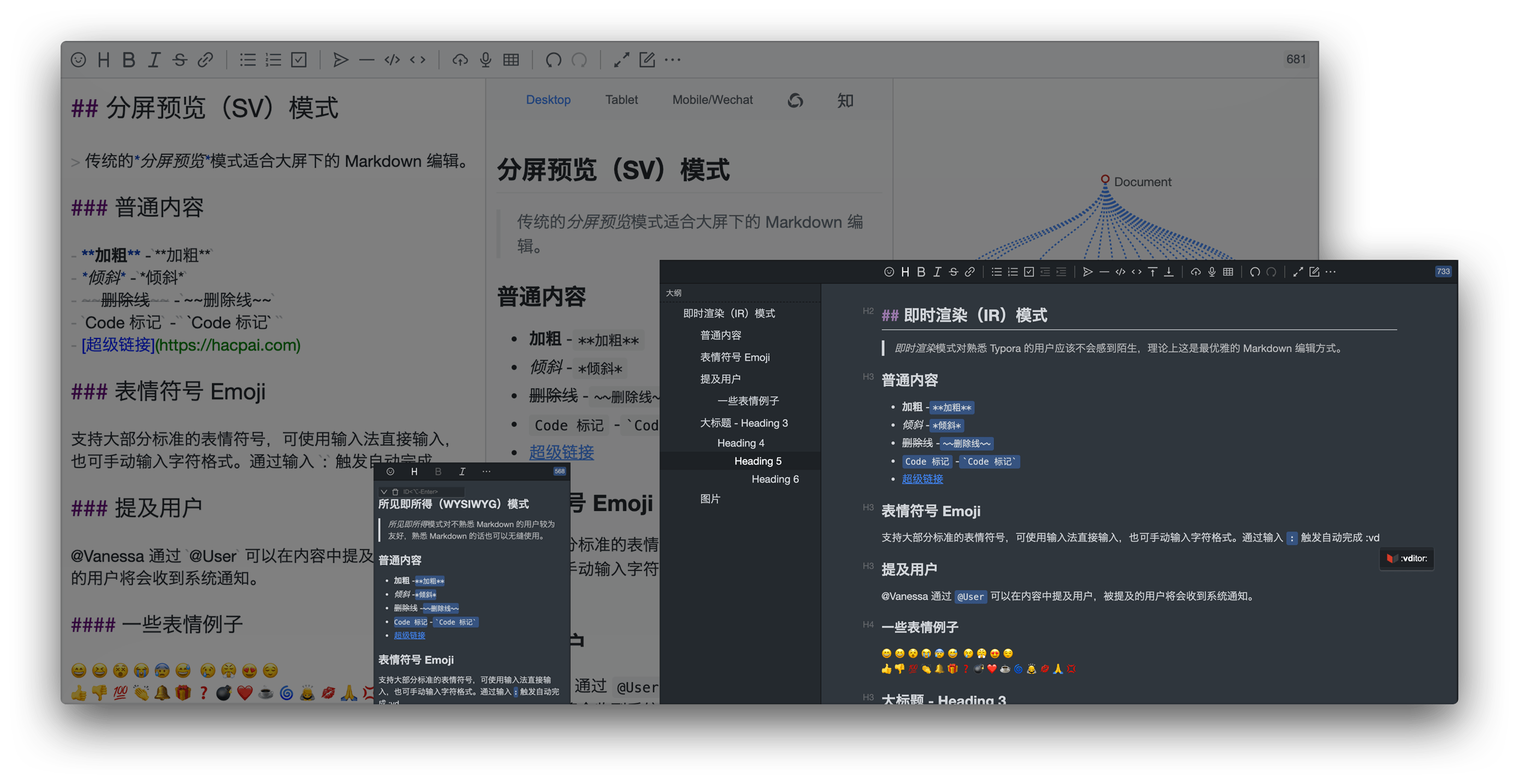
- 支持三种编辑模式:所见即所得(wysiwyg)、即时渲染(ir)、分屏预览(sv)
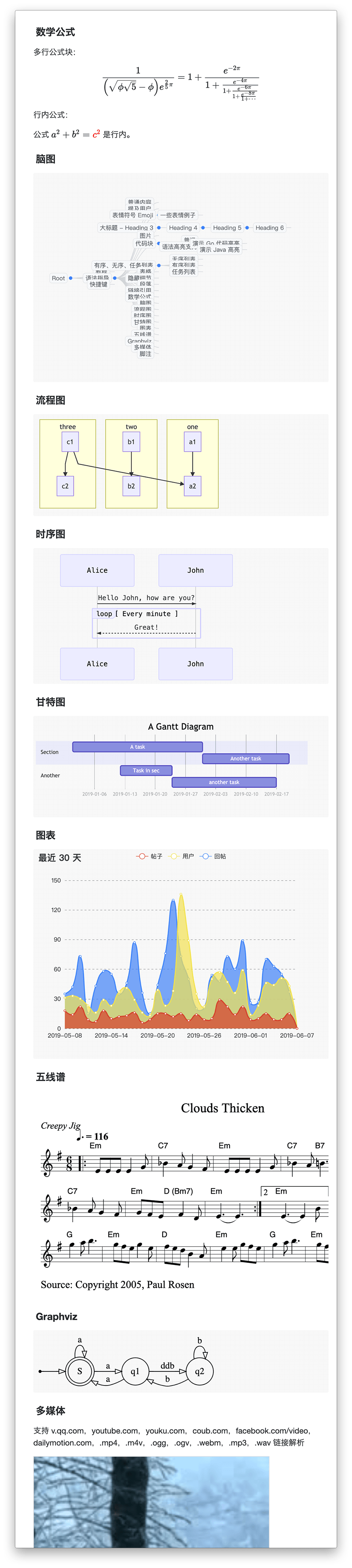
- 支持大纲、数学公式、脑图、图表、流程图、甘特图、时序图、五线谱、[多媒体](https://ld246.com/article/1589813914768)、语音阅读、标题锚点、代码高亮及复制、graphviz 渲染、[plantuml](https://plantuml.com)UML图
- 导出、图片懒加载、任务列表、多平台预览、多主题切换、复制到微信公众号/知乎功能
- 实现 CommonMark 和 GFM 规范,可对 Markdown 进行格式化和语法树查看,并支持[10+项](https://ld246.com/article/1549638745630#options-preview-markdown)配置
- 工具栏包含 36+ 项操作,除支持扩展外还可对每一项中的[快捷键](https://ld246.com/article/1582778815353)、提示、提示位置、图标、点击事件、类名、子工具栏进行自定义
- 表情/at/话题等自动补全扩展
- 可使用拖拽、剪切板粘贴上传,显示实时上传进度,支持 CORS 跨域上传
- 实时保存内容,防止意外丢失
- 录音支持,用户可直接发布语音
- 粘贴 HTML 自动转换为 Markdown,如粘贴中包含外链图片可通过指定接口上传到服务器
- 支持主窗口大小拖拽、字符计数
- 多主题支持,内置黑白绿三套主题
- 多语言支持,内置中、英、韩文本地化
- 支持主流浏览器,对移动端友好
## 🔮 编辑模式
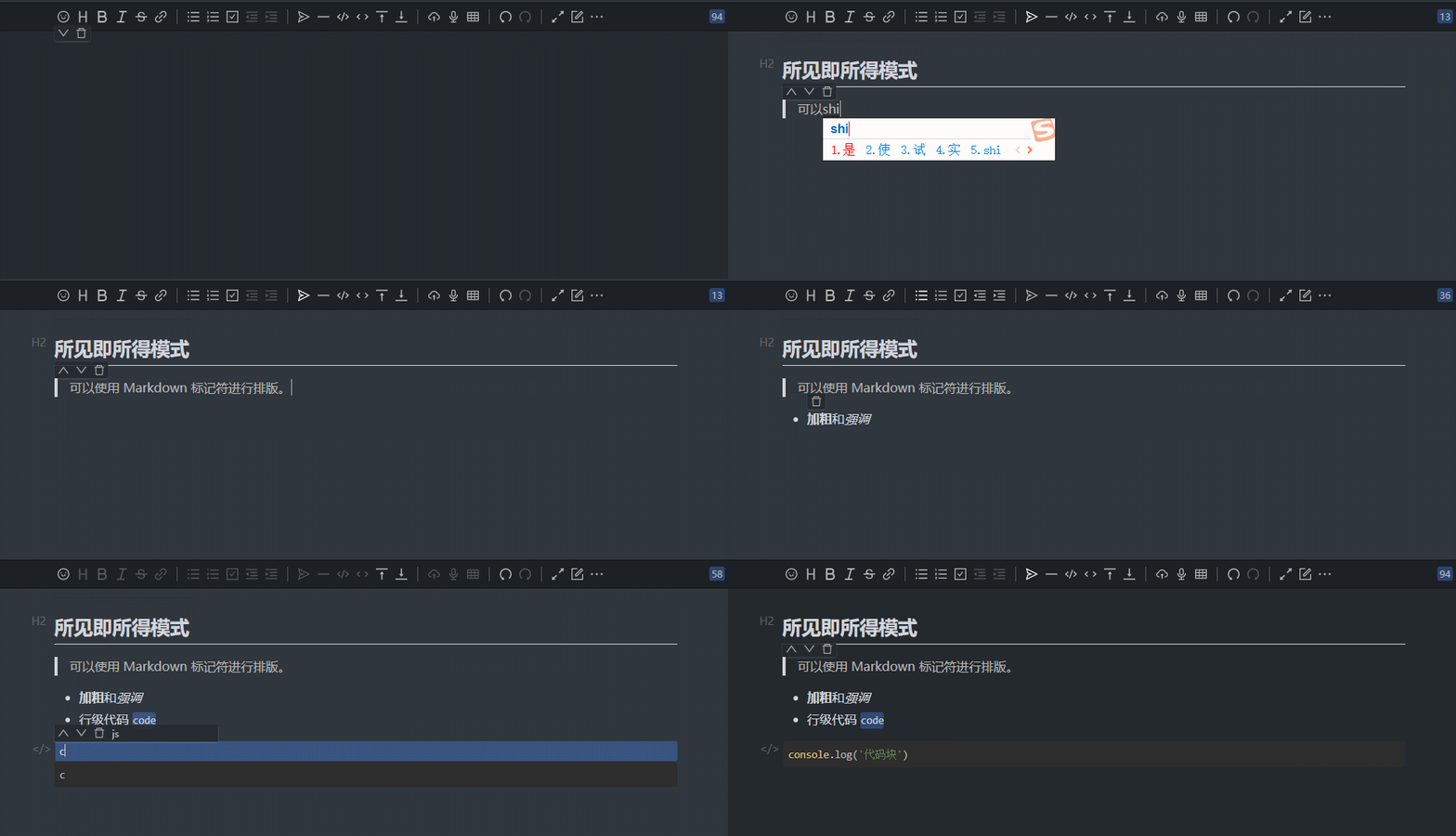
### 所见即所得(WYSIWYG)
*所见即所得*模式对不熟悉 Markdown 的用户较为友好,熟悉 Markdown 的话也可以无缝使用。
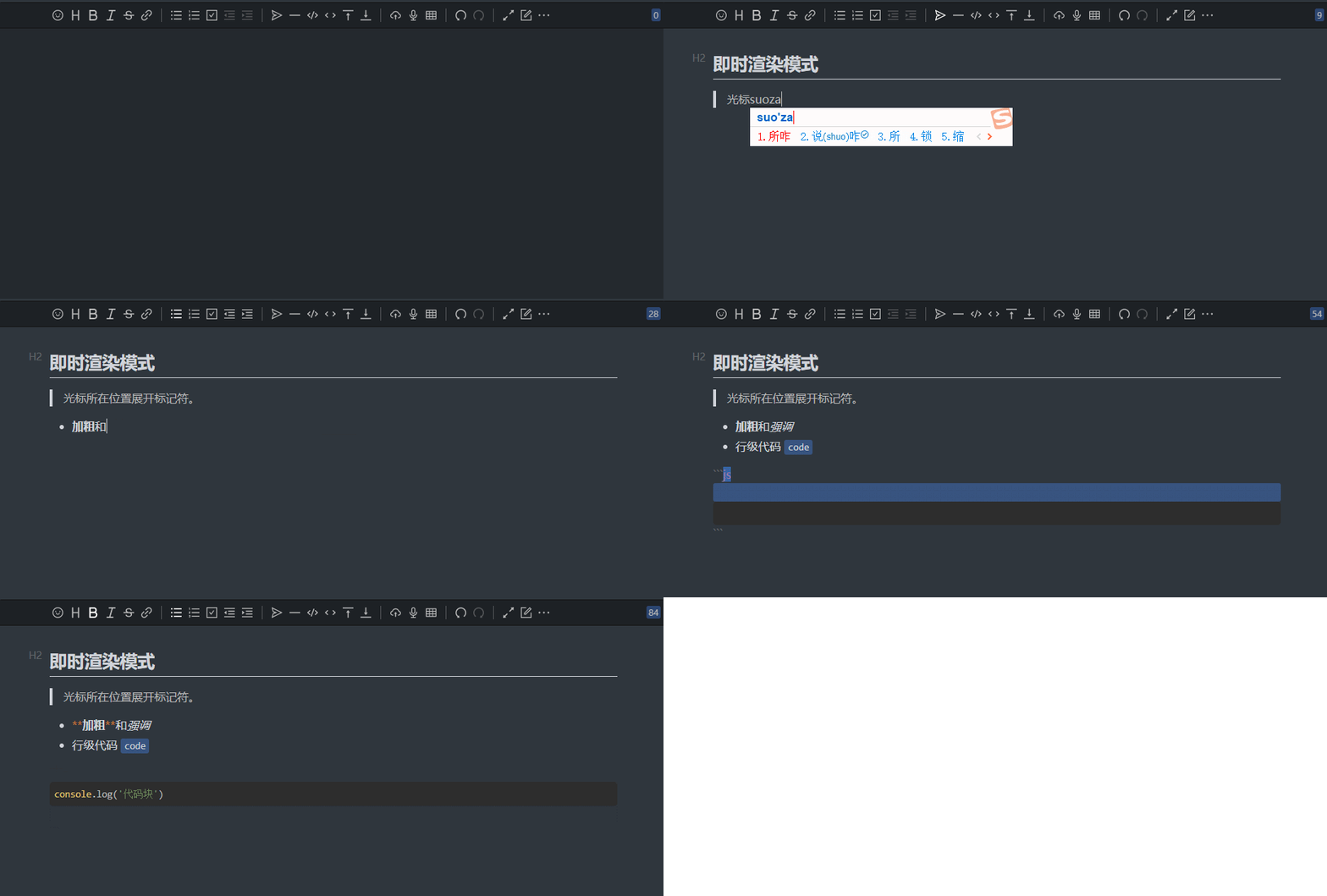
### 即时渲染(IR)
*即时渲染*模式对熟悉 Typora 的用户应该不会感到陌生,理论上这是最优雅的 Markdown 编辑方式。
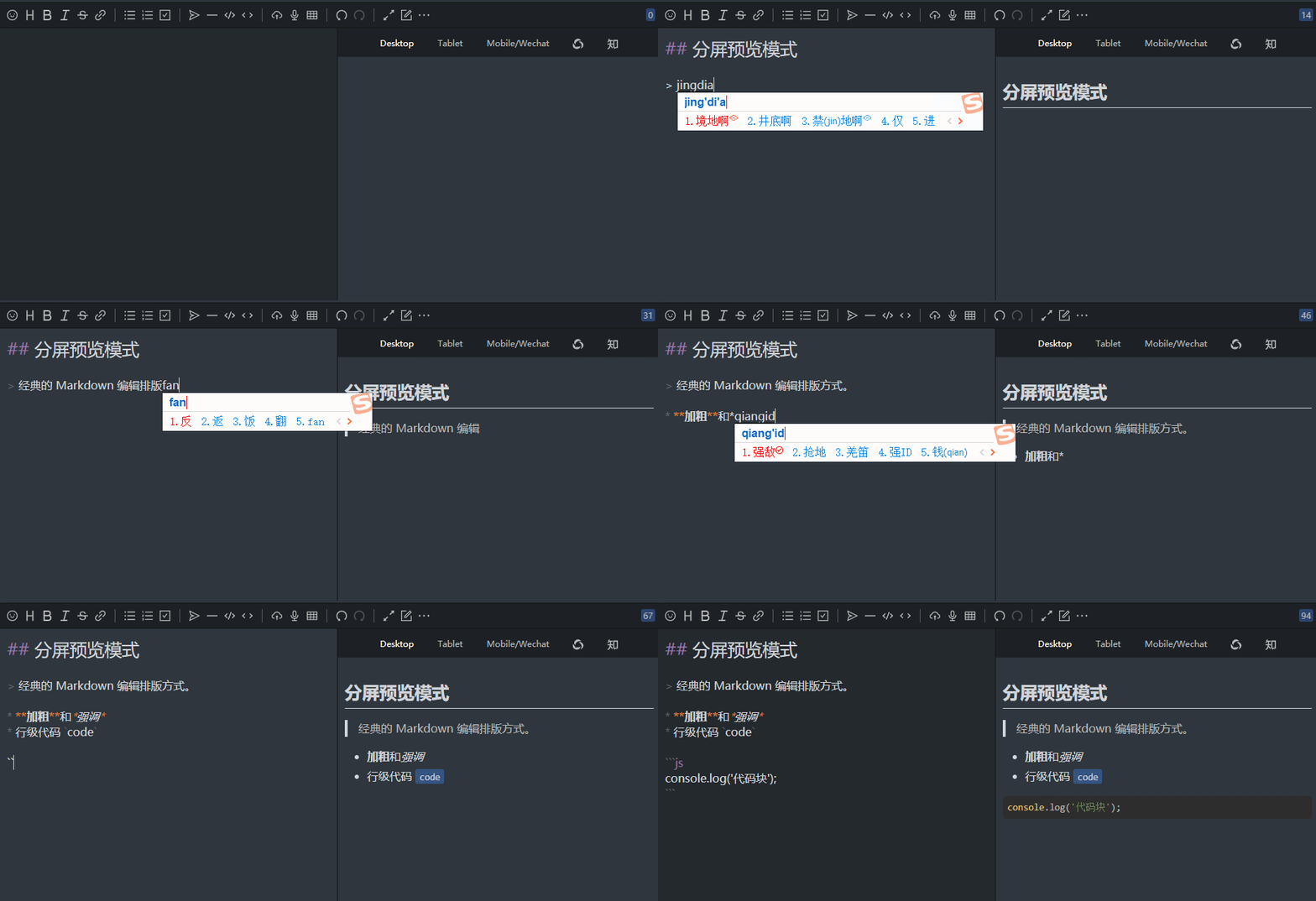
### 分屏预览(SV)
传统的*分屏预览*模式适合大屏下的 Markdown 编辑。
## 🍱 语法支持
- 所有 CommonMark 语法:分隔线、ATX 标题、Setext 标题、缩进代码块、围栏代码块、HTML 块、链接引用定义、段落、块引用、列表、反斜杠转义、HTML 实体、行级代码、强调、加粗、链接、图片、行级 HTML、硬换行、软换行和纯文本。
- 所有 GFM 语法:表格、任务列表项、删除线、自动链接、XSS 过滤
- 常用 Markdown 扩展语法:脚注、ToC、自定义标题 ID
- 图表语法
- 流程图、时序图、甘特图,通过 Mermaid 支持
- Graphviz
- 折线图、饼图、脑图等,通过 ECharts 支持
- 五线谱:通过 abc.js 支持
- 数学公式:数学公式块、行级数学公式,通过 MathJax 和 KaTeX 支持
- YAML Front Matter
- 中文语境优化
- 中西文之间插入空格
- 术语拼写修正
- 中文后跟英文逗号句号等标点替换为中文对应标点
以上大部分特性可以通过开关配置是否启用,开发者可根据自己的应用场景选择搭配。
## 🗃 案例
- [Sym](https://github.com/88250/symphony) 一款用 Java 实现的现代化社区(论坛/BBS/社交网络/博客)平台
- [Solo](https://github.com/88250/solo) & [Pipe](https://github.com/88250/pipe) B3log 分布式社区的博客端节点,欢迎加入下一代社区网络
- [Tditor](https://tditor.com) 基于React、Vditor、Springboot,一款打造极致文字创作体验的在线Markdown编辑平台
- [Arya](https://github.com/nicejade/markdown-online-editor) 基于 Vue、Vditor,所构建的在线 Markdown 编辑器
- [更多案例](https://github.com/Vanessa219/vditor/network/dependents?package_id=UGFja2FnZS0zMTY2Mzg4MzE%3D)
## 🛠️ 使用文档
### CommonJS
- 安装依赖
```shell
npm install vditor --save
```
- 在代码中引入并初始化对象,可参考 [index.js](https://github.com/Vanessa219/vditor/blob/master/demo/index.js)
```ts
import Vditor from 'vditor'
import "~vditor/src/assets/less/index"
const vditor = new Vditor(id, {options...})
```
### HTML script
- 在 HTML 中插入 CSS 和 JavaScript,可参考 [demo](https://b3log.org/vditor/demo/index.html)
```html
```
### 示例代码
- [官方示例](https://b3log.org/vditor/demo/index.html) / [示例源码](https://github.com/Vanessa219/b3log-index/tree/master/src/vditor)
- [CommonJS Editor](https://github.com/Vanessa219/vditor/blob/master/demo/index.js)
- [CommonJS Render](https://github.com/Vanessa219/vditor/blob/master/demo/render.js)
- [在Svelte中使用](https://github.com/HerbertHe/svelte-vditor-demo)
### 主题
### 编辑器主题
编辑器所展现的外观。内置classic,dark 2 套主题。
- 编辑器初始化时可通过 `options.theme` 设置内置主题
- 初始化完成后可通过 `setTheme` 更新编辑器主题
- 可通过修改 [index.less](https://github.com/Vanessa219/vditor/blob/master/src/assets/less/index.less) 中的变量对主题颜色进行定制
- 可参考现有结构和类名在原有基础上进行修改
### 内容主题
Markdown 输出的 HTML 所展现的外观。内置 ant-design, light,dark,wechat 4 套主题。支持内容主题扩展接口。
- 需在显示元素上添加 `class="vditor-reset"`
- 编辑器初始化时可通过 `options.preview.theme` 设置内置或自己开发的主题列表
- 内容渲染初始化时可通过 `IPreviewOptions.theme` 设置内置或自己开发的主题
- 初始化完成后可通过 `setTheme` 或 `setContentTheme` 更新内容主题
### 代码主题
代码块所展现的外观。内置 github 等 36 套主题。
- 编辑器初始化时可通过 `options.preview.hljs` 对代码块样式、行号、是否启用进行设置
- 内容渲染初始化时可通过 `IPreviewOptions.hljs` 对代码块样式、行号、是否启用进行设置
- 初始化完成后可通过 `setTheme` 或 `setCodeTheme` 更新代码主题
### API
### id
可填入元素 `id` 或元素自身 `HTMLElement`
⚠️:当填入元素自身的 `HTMLElement` 时需设置 `options.cache.id` 或将 `options.cache.enable` 设置为 `false`
### options
说明默认值i18n多语言,参见 ITips-undoDelay历史记录间隔-after编辑器异步渲染完成后的回调方法-height编辑器总高度'auto'minHeight编辑区域最小高度-width编辑器总宽度,支持 %'auto'placeholder输入区域为空时的提示''lang语言种类:de_DE, en_US, es_ES, fr_FR, ja_JP, ko_KR, pt_BR, ru_RU, sv_SE, vi_VN, zh_CN, zh_TW'zh_CN'input(value: string)输入后触发-focus(value: string)聚焦后触发-blur(value: string)失焦后触发-keydown(event: KeyboardEvent)按下后触发-esc(value: string)esc 按下后触发-ctrlEnter(value: string)⌘/ctrl+enter 按下后触发-select(value: string)编辑器中选中文字后触发-unSelect()编辑器中未选中文字后触发-tabtab 键操作字符串,支持 `\t` 及任意字符串-typewriterMode是否启用打字机模式falsecdn配置自建 CDN 地址`https://unpkg.com/vditor@${VDITOR_VERSION}`mode可选模式:sv, ir, wysiwyg'ir'debugger是否显示日志falsevalue编辑器初始化值''theme主题:classic, dark'classic'icon图标风格:ant, material'ant'customRenders: {language: string, render: (element: HTMLElement, vditor: IVditor) => void}[]自定义渲染器[]customWysiwygToolbar(type: TWYSISYGToolbar, element: HTMLElement): void对 wysiwyg 模式下的工具栏进行自定义-
### options.toolbar
- 工具栏,可使用 name 进行简写: `toolbar: ['emoji', 'br', 'bold', '|', 'line']` 。默认值参见 [src/ts/util/Options.ts](https://github.com/Vanessa219/vditor/blob/master/src/ts/util/Options.ts)
- name 可枚举为: `emoji`,`headings`,`bold`,`italic`,`strike`,`|`,`line`,`quote`,`list`,`ordered-list`,`check` ,`outdent` ,`indent`,`code`,`inline-code`,`insert-after`,`insert-before` ,`undo`,`redo`,`upload`,`link`,`table`,`record`,`edit-mode`,`both`,`preview`,`fullscreen`,`outline`,`code-theme`,`content-theme`,`export`, `devtools`,`info`,`help`,`br`
- 当 `name` 不在枚举中时,可以添加自定义按钮,格式如下:
```js
new Vditor('vditor', {
toolbar: [
{
hotkey: '⇧⌘S',
name: 'sponsor',
tipPosition: 's',
tip: '成为赞助者',
className: 'right',
icon: '',
click () {alert('捐赠地址:https://ld246.com/sponsor')},
}],
})
```
说明默认值name唯一标示-iconsvg 图标-tip提示-tipPosition提示位置:'n', 'ne', 'nw', 's', 'se', 'sw', 'w', 'e'-hotkey快捷键,格式为⇧⌘/⌘/⌥⌘-suffix插入编辑器中的后缀-prefix插入编辑器中的前缀-click(event: Event, vditor: IVditor)自定义按钮点击时触发的事件-className样式名''toolbar?: Array子菜单-
### options.toolbarConfig
说明默认值hide是否隐藏工具栏falsepin是否固定工具栏false
### options.counter
说明默认值enable是否启用计数器falseafter(length: number, counter: options.counter): void字数统计回调-max允许输入的最大值-type统计类型:'markdown', 'text''markdown'
### options.cache
说明默认值enable是否使用 localStorage 进行缓存trueid缓存 key,第一个参数为元素且启用缓存时**必填**-after(html: string): string缓存后的回调-
### options.comment
⚠️:仅支持 wysiwyg 模式
说明默认值enable是否启用评论模式falseadd(id: string, text: string, commentsData: ICommentsData[])添加评论回调-remove(ids: string[])删除评论回调-scroll(top: number)滚动回调-adjustTop(commentsData: ICommentsData[])文档修改时,适配评论高度-
### options.preview
说明默认值delay预览 debounce 毫秒间隔1000maxWidth预览区域最大宽度800mode显示模式:both, editor'both'urlmd 解析请求-parse(element: HTMLElement)预览回调-transform(html: string): string渲染之前回调-
### options.preview.hljs
说明默认值defaultLang未指定语言时默认使用该语言''enable是否启用代码高亮truestyle可选值参见[Chroma](https://xyproto.github.io/splash/docs/longer/all.html)`github`lineNumber是否启用行号falselangs自定义指定语言[CODE_LANGUAGES](https://github.com/Vanessa219/vditor/blob/53ca8f9a0e511b37b5dae7c6b15eb933e9e02ccd/src/ts/constants.ts#L20)renderMenu(code: HTMLElement, copy: HTMLElement)渲染菜单按钮-
### options.preview.markdown
说明默认值autoSpace自动空格falsegfmAutoLink自动链接truefixTermTypo自动矫正术语falsetoc插入目录falsefootnotes脚注truecodeBlockPreviewwysiwyg 和 ir 模式下是否对代码块进行渲染truemathBlockPreviewwysiwyg 和 ir 模式下是否对数学公式进行渲染trueparagraphBeginningSpace段落开头空两个falsesanitize是否启用过滤 XSStruelistStyle为列表添加 data-style 属性falselinkBase链接相对路径前缀''linkPrefix链接强制前缀''mark启用 mark 标记falsesup上标falsesub下标false
### options.preview.theme
说明默认值current当前主题"light"list可选主题列表{ "ant-design": "Ant Design", dark: "Dark", light: "Light", wechat: "WeChat" }path主题样式地址`https://unpkg.com/vditor@${VDITOR_VERSION}/dist/css/content-theme`
### options.preview.math
说明默认值inlineDigit内联数学公式起始 $ 后是否允许数字falsemacros使用 MathJax 渲染时传入的宏定义{}engine数学公式渲染引擎:KaTeX, MathJax'KaTeX'mathJaxOptions数学公式渲染引擎为 MathJax 时的参数-
### options.preview.actions?: Array
默认值为 ["desktop", "tablet", "mobile", "mp-wechat", "zhihu"]。
可从默认值中挑选进行配置,也可使用以下字段进行自定制开发。
说明默认值key按钮唯一标识,不能为空-text按钮文字-tooltip提示-className按钮类名-click(key: string)按钮点击回调事件-
### options.preview.render.media
说明默认值enable是否启用多媒体渲染true
### options.image
说明默认值isPreview是否预览图片truepreview(bom: Element) => void图片预览处理-
### options.link
说明默认值isOpen是否打开链接地址trueclick(bom: Element) => void点击链接事件-
### options.hint
说明默认值parse是否进行 md 解析truedelay提示 debounce 毫秒间隔200emoji默认表情,可从[lute/emoji_map](https://github.com/88250/lute/blob/master/parse/emoji_map.go) 中选取,也可自定义{ '+1': '👍', '-1': '👎', 'heart': '❤️', 'cold_sweat': '😰' }emojiTail常用表情提示-emojiPath表情图片地址`https://unpkg.com/vditor@${VDITOR_VERSION}/dist/images/emoji`extend: IHintExtend[]对 @/话题等关键字自动补全的扩展[]
```ts
interface IHintData {
html: string;
value: string;
}
interface IHintExtend {
key: string;
hint?(value: string): IHintData[] | Promise;
}
```
### options.upload
- 文件上传的数据结构如下。后端返回的数据结构不一致时,可使用 `format` 进行转换。
```js
// POST data
xhr.send(formData); // formData = FormData.append("file[]", File)
// return data
{
"msg": "",
"code": 0,
"data": {
"errFiles": ['filename', 'filename2'],
"succMap": {
"filename3": "filepath3",
"filename3": "filepath3"
}
}
}
```
- 为了防止站外图片失效,`linkToImgUrl` 可将剪贴板中的站外图片地址传到服务器端进行保存处理,其数据结构如下:
```js
// POST data
xhr.send(JSON.stringify({url: src})); // src 为站外图片地址
// return data
{
msg: '',
code: 0,
data : {
originalURL: '',
url: ''
}
}
```
- `success`,`format`,`error` 不会同时触发,具体调用情况如下:
```js
if (xhr.status === 200) {
if (vditor.options.upload.success) {
vditor.options.upload.success(editorElement, xhr.responseText);
} else {
let responseText = xhr.responseText;
if (vditor.options.upload.format) {
responseText = vditor.options.upload.format(files as File [], xhr.responseText);
}
genUploadedLabel(responseText, vditor);
}
} else {
if (vditor.options.upload.error) {
vditor.options.upload.error(xhr.responseText);
} else {
vditor.tip.show(xhr.responseText);
}
}
```
说明默认值xhr上传时使用的 XMLHttpRequest-url上传 url,为空则不会触发上传相关事件''max上传文件最大 Byte10 * 1024 * 1024linkToImgUrl剪切板中包含图片地址时,使用此 url 重新上传''linkToImgCallback(responseText: string)图片地址上传回调-linkToImgFormat(responseText: string): string对图片地址上传的返回值进行格式化-success(editor: HTMLPreElement, msg: string)上传成功回调-error(msg: string)上传失败回调-tokenCORS 上传验证,头为 X-Upload-Token-withCredentials跨站点访问控制falseheaders请求头设置-filename(name: string): string文件名安全处理name => name.replace(/\W/g, '')accept文件上传类型,同[input accept](https://www.w3schools.com/tags/att_input_accept.asp)-validate(files: File[]) => string | boolean校验,成功时返回 true 否则返回错误信息-handler(files: File[]) => string | null | Promise | Promise自定义上传,当发生错误时返回错误信息-format(files: File[], responseText: string): string对服务端返回的数据进行转换,以满足内置的数据结构-file(files: File[]): File[] | Promise将上传的文件处理后再返回-cancel(files: File[]): void取消正在上传的文件-setHeaders(): { [key: string]: string }上传前使用返回值设置头-extraData: { [key: string]: string | Blob }为 FormData 添加额外的参数-multiple上传文件是否为多个truefieldName上传字段名称'file[]'renderLinkDest?(vditor: IVditor, node: ILuteNode, entering: boolean): [string, number]处理剪贴板中的图片地址''
### options.resize
说明默认值enable是否支持大小拖拽falseposition拖拽栏位置:'top', 'bottom''bottom'after(height: number)拖拽结束的回调-
### options.classes
说明默认值preview预览元素上的 className''
### options.fullscreen
说明默认值index全屏层级90
### options.outline
说明默认值enable初始化是否展现大纲falseposition大纲位置:'left', 'right''left'
### methods
说明exportJSON(markdown: string)根据 Markdown 获取对应 JSONgetValue()获取 Markdown 内容getHTML()获取 HTML 内容insertValue(value: string, render = true)在焦点处插入内容,并默认进行 Markdown 渲染focus()聚焦到编辑器blur()让编辑器失焦disabled()禁用编辑器enable()解除编辑器禁用getSelection(): string返回选中的字符串setValue(markdown: string, clearStack = false)设置编辑器内容且选中清空历史栈clearStack()清空撤销和重做记录栈renderPreview(value?: string)设置预览区域内容getCursorPosition():{top: number, left: number}获取焦点位置deleteValue()删除选中内容updateValue(value: string)更新选中内容isUploading()上传是否还在进行中clearCache()清除缓存disabledCache()禁用缓存enableCache()启用缓存html2md(value: string)HTML 转 mdtip(text: string, time: number)消息提示。time 为 0 将一直显示setPreviewMode(mode: "both" | "editor")设置预览模式setTheme(theme: "dark" | "classic", contentTheme?: string, codeTheme?: string, contentThemePath?: string)设置主题、内容主题及代码块风格getCurrentMode(): string获取编辑器当前编辑模式destroy()销毁编辑器getCommentIds(): {id: string, top: number}[]获取所有评论hlCommentIds(ids: string[])高亮评论unHlCommentIds(ids: string[])取消评论高亮removeCommentIds(removeIds: string[])删除评论updateToolbarConfig(config: {hide?: boolean, pin?: boolean})更新工具栏配置insertEmptyBlock(position: InsertPosition)插入空快
### static methods
- 不需要进行编辑操作时,仅需引入 [`method.min.js`](https://unpkg.com/vditor/dist/) 后如下直接调用
```js
Vditor.mermaidRender(document)
```
```js
import VditorPreview from 'vditor/dist/method.min'
VditorPreview.mermaidRender(document)
```
- 需要对页面中的 Markdown 进行渲染时可直接调用 `preview` 方法,参数如下:
```ts
previewElement: HTMLDivElement, // 使用该元素进行渲染
markdown: string, // 需要渲染的 markdown 原文
options?: IPreviewOptions {
mode: "dark" | "light";
anchor?: number; // 为标题添加锚点 0:不渲染;1:渲染于标题前;2:渲染于标题后,默认 0
customEmoji?: { [key: string]: string }; // 自定义 emoji,默认为 {}
lang?: (keyof II18nLang); // 语言,默认为 'zh_CN'
emojiPath?: string; // 表情图片路径
hljs?: IHljs; // 参见 options.preview.hljs
speech?: { // 对选中后的内容进行阅读
enable?: boolean,
};
math?: IMath; // 数学公式渲染配置
cdn?: string; // 自建 CDN 地址
transform?(html: string): string; // 在渲染前进行的回调方法
after?(); // 渲染完成后的回调
lazyLoadImage?: string; // 设置为 Loading 图片地址后将启用图片的懒加载
markdown?: options.preview.markdown;
theme?: options.preview.theme;
render?: options.preview.render;
renderers?: ILuteRender; // 自定义渲染 https://ld246.com/article/1588412297062
}
```
- ⚠️ `method.min.js` 和 `index.min.js` 不可同时引入
说明previewImage(oldImgElement: HTMLImageElement, lang: keyof II18n = "zh_CN", theme = "classic")点击图片预览mermaidRender(element: HTMLElement, cdn = options.cdn, theme = options.theme)流程图/时序图/甘特图SMILESRender(element: HTMLElement, cdn = options.cdn, theme = options.theme)化学物质结构markmapRender(element: HTMLElement, cdn = options.cdn)markdown 思维导图flowchartRender(element: HTMLElement, cdn = options.cdn)flowchart 渲染codeRender(element: HTMLElement, option?: IHljs)为 element 中的代码块添加复制按钮chartRender(element: (HTMLElement | Document) = document, cdn = options.cdn, theme = options.theme)图表渲染mindmapRender(element: (HTMLElement | Document) = document, cdn = options.cdn, theme = options.theme)脑图渲染plantumlRender(element: (HTMLElement | Document) = document, cdn = options.cdn)plantuml 渲染abcRender(element: (HTMLElement | Document) = document, cdn = options.cdn)五线谱渲染md2html(mdText: string, options?: IPreviewOptions): PromiseMarkdown 文本转换为 HTML,该方法需使用[异步编程](https://ld246.com/article/1546828434083?r=Vanessa#toc_h3_1)preview(previewElement: HTMLDivElement, markdown: string, options?: IPreviewOptions)页面 Markdown 文章渲染highlightRender(hljsOption?: IHljs, element?: HTMLElement | Document, cdn = options.cdn)为 element 中的代码块进行高亮渲染mediaRender(element: HTMLElement)为[特定链接](https://ld246.com/article/1589813914768)分别渲染为视频、音频、嵌入的 iframemathRender(element: HTMLElement, options?: {cdn?: string, math?: IMath})对数学公式进行渲染speechRender(element: HTMLElement, lang?: (keyof II18nLang))对选中的文字进行阅读graphvizRender(element: HTMLElement, cdn?: string)对 graphviz 进行渲染outlineRender(contentElement: HTMLElement, targetElement: Element)对大纲进行渲染lazyLoadImageRender(element: (HTMLElement | Document) = document)对启用懒加载的图片进行渲染setCodeTheme(codeTheme: string, cdn = options.cdn)设置代码主题,codeTheme 参见 options.preview.hljs.stylesetContentTheme(contentTheme: string, path: string)设置内容主题,contentTheme 参见 options.preview.theme.list
## 🏗 开发文档
### 原理相关
- [关于所见即所得 Markdown 编辑器的讨论](https://ld246.com/article/1579414663700)
- [Vditor 实现 Markdown 所见即所得](https://ld246.com/article/1577370404903)
- [Lute 一款对中文语境优化的 Markdown 引擎,支持 Go 和 JavaScript](https://ld246.com/article/1567047822949)
### 环境
1. 安装 [node](https://nodejs.org/) LTS 版本
2. [下载](https://github.com/Vanessa219/vditor/archive/master.zip)最新代码并解压
3. 根目录运行 `npm install`
4. `npm run start` 启动本地服务器,打开 [http://localhost:9000](http://localhost:9000)
5. 修改代码
6. `npm run build` 打包代码到 dist 目录
### CDN 切换
由于使用了按需加载的机制,默认 CDN 为 [https://unpkg.com/vditor](https://unpkg.com/vditor)@版本号
如果代码有修改或需要使用自建 CDN 的话,可按以下步骤进行操作:
- 初始化时,需对 `options` 及 `IPreviewOptions` 中的 `cdn`,`emojiPath`, `themes` 进行配置
- `highlightRender`,`mathRender`,`abcRender`,`chartRender`,`mermaidRender`,`SMILESRender`,`markmapRender`,`flowchartRender`,`mindmapRender`,`plantumlRender`,`graphvizRender`,`setCodeTheme`,`setContentTheme` 方法中需添加 cdn 参数
- 将 build 成功的 dist 目录或 [jsDelivr](https://www.jsdelivr.com/package/npm/vditor?path=dist) 中的 dist 目录拷贝至正确的位置
### 升级
版本升级时请**仔细阅读** [CHANGELOG](https://github.com/Vanessa219/vditor/blob/master/CHANGELOG.md) 中的**升级**部分
## Ⓜ️ Markdown 使用指南
- [基础语法](https://ld246.com/article/1583129520165)
- [扩展语法](https://ld246.com/article/1583305480675)
- [速查手册](https://ld246.com/article/1583308420519)
## 🏘️ 社区
- [官网](https://b3log.org/vditor)
- [讨论区](https://ld246.com/tag/vditor)
- [报告问题](https://github.com/Vanessa219/vditor/issues/new)
## 📄 授权
Vditor 使用 [MIT](https://opensource.org/licenses/MIT) 开源协议。
## 🙏 鸣谢
- [Lute](https://github.com/88250/lute):🎼 一款结构化的 Markdown 引擎,支持 Go 和 JavaScript
- [highlight.js](https://github.com/highlightjs/highlight.js):JavaScript syntax highlighter
- [mermaid](https://github.com/knsv/mermaid):Generation of diagram and flowchart from text in a similar manner as Markdown
- [incubator-echarts](https://github.com/apache/incubator-echarts):A powerful, interactive charting and visualization library for browser
- [abcjs](https://github.com/paulrosen/abcjs):JavaScript library for rendering standard music notation in a browser
## 📽️ 历史
我们在开发 [Sym](https://github.com/88250/symphony) 的初期是直接使用 WYSIWYG 富文本编辑器的。那时候基于 HTML 的编辑器非常流行,项目中引用起来也很方便,也符合用户当时的使用习惯。
后来,Markdown 的崛起逐步改变了大家的排版方式。再加上我们其他几个项目都是面向程序员用户的,所以迁移到 md 上也是大势所趋。我们选择了 [CodeMirror](https://github.com/codemirror/CodeMirror),这是一款优秀的编辑器,它对开发者提供了丰富的编程接口,对各种浏览器的兼容性也比较好。
再后来,随着我们项目业务需求方面的沉淀,使用 CodeMirror 有时候会感到比较“笨重”。比如要实现 @自动完成用户名列表、插入 Emoji、上传文件等就需要比较深入的二次开发,而这些业务需求恰恰是很多项目场景共有且必备的。
终于,我们决定开始在 Sym 中自己实现编辑器。随着几个版本的迭代,Sym 的编辑器也日趋成熟。在我们运营的社区[链滴](https://ld246.com)上陆续有人问我们是否能将编辑器单独抽离出来提供给大家使用。与此同时,我们的前端主程 [V](https://ld246.com/member/Vanessa) 同学对于维护分散在各个项目中的编辑器也感到有点力不从心,外加对 TypeScript 的好感,所以就决定使用 ts 来实现一个全新的浏览器端 md 编辑器。
于是,Vditor 就这样诞生了。